

Video Adapter
- USD 25.02

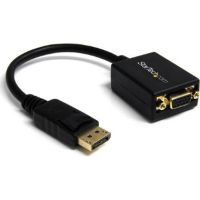
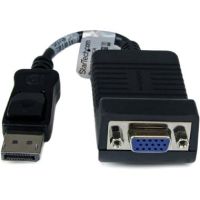
 StarTech DisplayPort to VGA Video Adapter Converter (Black) ...
 In Stock
Brand: StarTech SKU: DP2VGA2 Condition: NEW USD 25.02 - USD 28.28 StarTech DisplayPort to VGA Video Adapter Converter (Black) ... In Stock
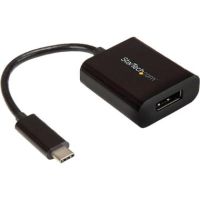
Brand: StarTech SKU: DP2VGA Condition: NEW USD 28.28 - USD 32.33 StarTech USB Type-C to DisplayPort 8K Video Adapter - CDP2DP In Stock
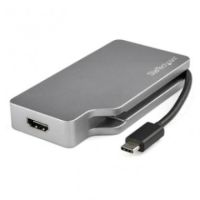
Brand: StarTech SKU: CDP2DP Condition: NEW USD 32.33 - USD 36.14 StarTech USB C Multiport Video Adapter 4K/1080p -USB-C to HD... In Stock
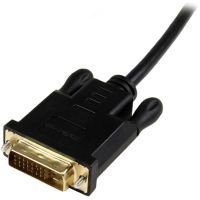
Brand: StarTech SKU: CDPVDHDMDPSG Condition: NEW USD 36.14 - USD 40.97 StarTech 6ft (2m) Mini DisplayPort to DVI Adapter Cable, Act... In Stock
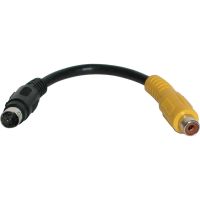
Brand: StarTech SKU: MDP2DVIMM6BS Condition: NEW USD 40.97 - USD 0.00 StarTech 6in S-Video to Composite Video Adapter Cable - SVID...
 Out of Stock
Brand: StarTech SKU: SVID2COMP Condition: NEW Call us for price(669) 244-0333
- USD 0.00 StarTech Mini DisplayPort to VGA Video Adapter Converter (Bl...Out of Stock
Brand: StarTech SKU: MDP2VGA Condition: NEW Call us for price(669) 244-0333
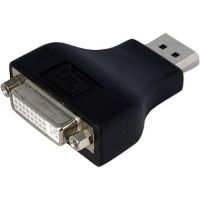
- USD 0.00 StarTech DisplayPort DVI Video Adapter Converter (Black) - D...Out of Stock
Brand: StarTech SKU: DP2DVIADAP Condition: NEW Call us for price(669) 244-0333
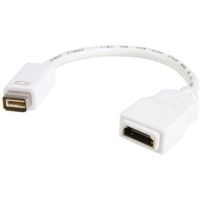
- USD 0.00 StarTech Mini-DVI Male to HDMI Female Video Adapter for MacB...Out of Stock
Brand: StarTech SKU: MDVIHDMIMF Condition: NEW Call us for price(669) 244-0333

The Best Video Adapters for HDMI, VGA, DisplayPort & USB-C | Buy Online
With the emergence of 4K and 8K monitors and projectors, buyers often end up asking what video adapters are and why they need them. The answer is very simple. An external video adapter, also known as a display adapter, video converter adapter, and graphics adapter, is a small hardware device that converts video signals from one connector type to another. They help users connect laptops, computers, and gaming consoles with monitors, projectors, and TVs that have different kinds of video connectors/ports. The graphics adapters for PCs, laptops, and gaming consoles are attached to a part of the source device, and they convert one video signal protocol to another, for instance, DisplayPort to HDMI. To make it further simple, if your laptop features an HDMI port and you need to display videos on a larger monitor that supports only a VGO port. You can simply use HDMI to VGA adapters. The same is true with USB-C to HDMI adapter, DisplayPort to VGA adapter, and HDMI to DisplayPort adapter, which convert video signals from one connector to another. However, you need to understand the ins and outs of the video adapter for PC to monitor connection so that you can make a well-informed decision.
Types of Video Adapters:
Depending upon the connection types on laptops, gaming consoles, projectors, streaming, TVs, and docking stations, you end up choosing from various types of video adapters. You need to choose them carefully to avoid incompatibility problems.
1. HDMI Adapters:
HDMI (High-Definition Multimedia Interface) is the most popular video connector, available in monitors, modern PCs, streaming devices, docking stations, and laptops. HDMI adapters stand out for multiple reasons.
They support high-definition videos, allowing users to enjoy up to 4K resolutions. For instance, HDMI 1.4 supports 4K @ 30Hz or 1080p @ 120Hz, HDMI 2.0 allows 4K @ 60Hz with HDR, and HDMI 2.1 supports 4K @ 120Hz, 8K @ 60Hz.
HDMI adapters can carry premium digital audio signals, making them suitable for presentation and other applications.
Finally, HDMI adapters are plug-and-play display video converters, and they are compatible with various devices, including gaming consoles, cellphones, tablets, laptops, and more. If you have several devices, you need only a single HDMI converter.
HDMI adapters can convert video signals to or from various video connectors; that’s why they are available in various types. They can convert signals from analog/digital video signals from VGA, DVI, DisplayPort, USB-C connectors; alternatively, HDMI adapters can convert HDMI digital signals to older formats like VGA.
• HDMI to VGA
• HDMI to DisplayPort
• HDMI to DVI
• HDMI to USB-C
• HDMI to Mini/Micro HDMI
Likewise, you can also purchase an HDMI with the following display conversion capabilities:
• USB to HDMI
• VAG to HDMI
• DVI to HDMI
2. VGA Adapters:
VGA, or Video Graphics Array, is an old video connector. However, it is still used in conference rooms, offices, industrial systems, and schools. VGA connectors can support HD resolution, but they support analog signals; the image may degrade. Furthermore, they don’t support audio transmission, demanding a VGA cable.
Similar to HDMI adapters, you can purchase various types of VGA adapters, including HDMI to VGA, DisplayPort to VGA, USB-C to VGA, DVI to VGA, and USB to VGA adapters. Similarly, you can also find VGA to HDMI adapters to convert old legacy systems to modern PCs, laptops, and docking stations that don’t support the VGA connector anymore.
VGA adapters are mostly deployed for connecting modern laptops to legacy office monitors, old projectors, digital signage with VGA-only displays, industrial control panels, and more.
3. DisplayPort Adapters:
DisplayPort is a high-definition digital display interface that has been developed to replace older video connectors, including VGA, DVI, and LVDS. DP Adapters connectors offer several advantages, including support for both audio/video signals, 4K/8K performance, and higher refresh rate. This display adapter is fitted in multi-monitor setups, TVs, Blu-ray players, laptops, professional workstations, and PC gaming.
DP connectors, and by extension DisplayPort Adapters, come in various variants. For example:
• DisplayPort 1.2 supports 4K @ 60Hz or 1440p @ 144Hz resolution, making it suitable for older gaming PCs.
• DisplayPort 1.4 can allow up to 8K @ 60Hz or 4K @ 144Hz with HDR resolution, preferable for workstation and gaming.
• DisplayPort 2.1 supports 4K@240Hz or 8K@120Hz without needing compression, making DisplayPort adapters suitable for cutting-edge gaming and creative work.
DisplayPort adapters can support various types of video conversion, which is why they are available in different types. For instance, DisplayPort to HDMI adapters for PCs to TVs, DisplayPort to DVI adapters for modern GPUs with 1440p monitors, DisplayPort to VGA adapters for modern PCs to legacy systems, and USB-C to DisplayPort adapters, and more.
4. USB-C/Thunderbolt Adapters:
USB-C connectors have become an integral part of modern laptops, docking stations, smartphones, ultra books, tablets, and MacBooks. USB-C connector is a versatile connectivity option, carrying power, data, audio, and video at a time.
Thunderbolt is also a high-speed hardware interface that supports data transfer, video output, and power delivery over a single cable. Initially, Thunderbolt 1 and Thunderbolt 2 depended upon the mini-DisplayPort connector; however, modern Thunderbolt 3, Thunderbolt 4, and Thunderbolt 5 adapters use oval-shaped USB-C connectors for delivering higher data rates, crisp video output, and reliable power.
Depending on the generation of USB-C connectors, USB-C video adapters are available in various variants. For instance, USB 3.2 Gen 2 can support up to 10Gbps, and USB-C Alt Mode helps users enjoy 4K @ 60 Hz resolution. You can thus purchase a 4K USB-C video adapter for a MacBook for graphic designs and other productivity tasks.
Likewise, Thunderbolt 3 and Thunderbolt 4 can support up to a blazing 40 Gbps bidirectional data pipeline. They can also provide 100 W of power over the same cable, allowing you to charge your laptops, smartphones, and tablets. Thunderbolt 4 adapters can drive two 4K @ 60 Hz monitors or a single 8K screen.
Similar to other adapters, USB-C and Thunderbolt adapters can also perform various types of video adapter conversion. For example:
• USB-C to HDMI adapters for connecting modern laptops to TVs and monitors.
• Thunderbolt to Dual HDMI/DisplayPort drives two 4K monitors from one port, making them the best video adapter for dual monitors for office and business settings.
• USB-C to DisplayPort adapters for high-refresh-rate gaming displays.
• USB-C to VGA adapters for connecting modern laptops with legacy projectors
• USB-C to DVI adapters for bridging modern devices with older monitors.
• USB-C Multiport Hubs for USB-C to multiple ports, including HDMI, SD card, Ethernet, USB-A, and the like.
5. DVI adapters
Digital Video Interface, or DVI, is another video connector that was introduced back in 1999 to replace the VGA interface. However, the DVI connector is still used in some graphics cards, business desktops, and older monitors. DVI video connectors are available in various variants. For instance, DVI-D Single Link connectors support 920x1200 pixels at 60Hz resolution, and DVI-D Dual Link connectors support 2560x1600 pixels at 60Hz resolution.
Likewise, DVI video adapters feature the same capability as that of DVI connectors. As far as video adapter conversion is concerned, DVI graphics adapters also carry out various types of video signal conversion. For example:
• DVI to DisplayPort adapters for connecting older systems to newer DisplayPort displays
• DVI to HDMI adapters for older PCs to modern monitors and TVs
• DVI to VGA adapters for bridging DVI-enabled graphics cards to old VGA monitors
• HDMI to DVI adapters for connecting modern devices to older DVI monitors
Popular Video Adapter Conversions:
External video adapters perform various types of conversion, meeting the different needs of users. Here are some popular video signal conversions that you should look into.
1- HDMI to VGA Video Adapter Conversion:
HDMI to VGA adapter conversion is one of the most popular, helping users connect HDMI devices to older monitors and projectors that accept VGA input. In this conversion, digital HDMI signals are converted into analog VGA signals, requiring a digital-to-analog converter (DAC) chip. Furthermore, HDMI to VGA video adapters feature .5mm audio input and micro-USB power for demanding devices.
HDMI to VGA adapters can support 1920 × 1080 (1080p) resolution at 60Hz refresh rate, allowing connecting modern laptops, Chromecast, Fire Stick, Ruko, gaming consoles (older models) to older monitors and legacy CRT or LCD with VGA only.
2- USB-C to HDMI Video Adapter Conversion:
Over the last five years or so, USB-C to HDMI video signal conversion has become quite popular, particularly when modern laptops started featuring USB-C connectors/ports. In this adapter conversion, a USB-C port carries a native DisplayPort signal, which is converted into HDMI format. Therefore, the USB-C port must support DisplayPort Alternate Mode (DP Alt Mode). This process can be passive or active.
USB-C to HDMI adapters can support 4K @ 30Hz (HDMI 1.4 adapters) or 4K @ 60Hz (HDMI 2.0) or 4K @ 120Hz / 8K @ 60Hz (HDMI 2.1) resolution. They also support HDR and audio transmission.
You can use USB-C to HDMI adapters for connecting a MacBook to a TV or external monitor, a Chromebook to a projector or large screen, a smartphone or tablet (with USB-C DP Alt Mode) to a TV, and a gaming device to a larger display.
3- DisplayPort to HDMI Video Adapter Conversion:
DP to HDMI conversion is mostly found in professional workstations and PC gaming. Moreover, DisplayPort to HDMI video adapters is also used to hook up a desktop to home theatre systems.
DisplayPort to HDMI video adapter conversion can take place through two modes: Native DisplayPort mode and DP++ (Dual-Mode DisplayPort). If your DP port supports DP++, you can go for a cheaper passive DisplayPort to HDMI adapter. However, if the port does not support DP++ or you want to enjoy HDMI 2.1, you should go for an active DisplayPort to HDMI adapter.
DisplayPort to HDMI adapters can support 4K @ 30Hz(passive) and 4K @ 60Hz, 4K @ 120Hz, 8K @ 60Hz(active) resolution. They also support audio transmission and HDR.
Key Features to Consider in Video Adapters:
The next big question that is often asked by users is what type of video adapters they need. To answer this question, look at these specs of monitor adapters before making the ultimate choice:
1- Resolution Support:
This is the foremost consideration. You need to make sure that the display adapter in question meets your resolution needs. As we have discussed earlier, different adapters support varying resolutions. For instance, VGA adapters and DVI can support HD resolution, and USB-C adapters, HDMI adapters, and DisplayPort adapters are 4K video adapters.
As far as resolution is concerned, a 1080p video adapter is the minimum resolution that you need for office work, basic gaming, and most TVs. 1440p (QHD / 2K) resolution is suitable for productivity and mid-range gaming. 4K (UHD) resolution is recommended for content creation, modern TVs, and premium gaming. Finally, 5K and 8K resolutions USB-C to DisplayPort video adapters are for high-end professional creative design and future-proofing.
2- Operating System Compatibility:
Compatibility is another major key spec that you must look into. Sometimes, a video adapter that is perfectly compatible with macOS fails to work with Windows. Therefore, you must give serious consideration to Operating System compatibility.
Here are some specific recommendations regarding the OS compatibility of your video adapters.
• Normally, almost every external display adapter can work with Windows. You should, however, look for Windows 10/11. However, video adapters featuring DisplayLink may demand separate driver installation.
• Mini-DVI Male to HDMI Female, USB-C, and Thunderbolt adapters can work seamlessly with MacBooks and iMacs.
• DisplayPort, native HDMI, and USB-C DP Alt Mode adapters can work with Linux.
• USB-C adapters and DisplayLink adapters can act like plug-and-play adapters on ChromeOS.
• USB-C to HDMI adapters can work seamlessly with iPads and iPad Pro with USB-C ports.
• USB-C to HDMI adapters show compatibility with Samsung DeX-compatible phones.
Plug-and-Play Vs Powered Video Adapters:
When you enter the market, you end up choosing between plug-and-play or passive adapters or powered or active video adapters.
Plug-and-Play adapters are the simplest ones, requiring no external power and dealing with digital-to-digital signal conversion. They can draw power from source ports such as HDMI, USB-C, and DisplayPort connectors. However, since they don’t support Pass-Through Charging, passive video adapters can cause battery drainage.
Active video adapters or powered video adapters require a separate power source. Users often have to use a separate UBS-A cable for powering the connected devices. This is because of fact that active video adapters need to carry out complex analog-to-digital video signal conversion, and they can also handle higher bandwidth as compared to passive monitor adapters.
Top Brands Available:
• StarTech
• Tripp Lite
• Belkin
• Dell
• Lenovo
FAQs:
1- Can VGA to HDMI adapters handle 4K TVs?
No, VGA to HDMI adapters can support a maximum 1080p resolution due to analog signals. You should go for active VGA to HDMI adapters with UBS power for resolution upscaling and audio support.
2- Why doesn't my USB-C to HDMI adapter work with my laptop?
First, you need to know that not all USB-C connectors are for video and audio. They only support charging and data. Users can suffer this problem because their laptops don’t support DisplayPort Alternate Mode (DP Alt Mode).
3- How do I know if I need an active or passive adapter?
Very simple. If the video adapter is dealing with digital-to-analog signal conversion, you need to install an active video adapter. However, if the conversion is digital-to-digital, go for a passive adapter.
Here is a simple chart showing the type of signal conversion.
• HDMI to DVI Passive (both digital)
• DisplayPort to HDMI Passive if source supports DP++; active otherwise
• HDMI to VGA Active (analog conversion)
• VGA to HDMI Active (analog conversion)
• USB-C to HDMI: Usually passive (DP Alt Mode pass-through)
• DVI to VGA Active for DVI-D; passive for DVI-I
4- Does my USB-C to HDMI adapter work on Linux?
Most video adapters are plug-and-play adapters for Windows/macOS; however, Linux needs kernel 5.4+ for Alt Mode. You should check ASMedia or Realtek chipsets.
5- My laptop battery drains fast when using a USB-C video adapter. Why?
USB-C adapters draw power from your laptop that may cause drainage of battery. You should look for video adapters with Power Delivery (PD) pass-through to address this problem.
Featured Products